Slack Integration
🔧 Slack Integration Guide
🔐 Step 1: Login
Login to your Slack account.
🔗 Step 2: Open Slack API Dashboard
Go to the
Slack API dashboard
🧱 Step 3: Create a New App
Click on Create New App

🧩 Step 4: Choose From Scratch
Choose (From Scratch) option

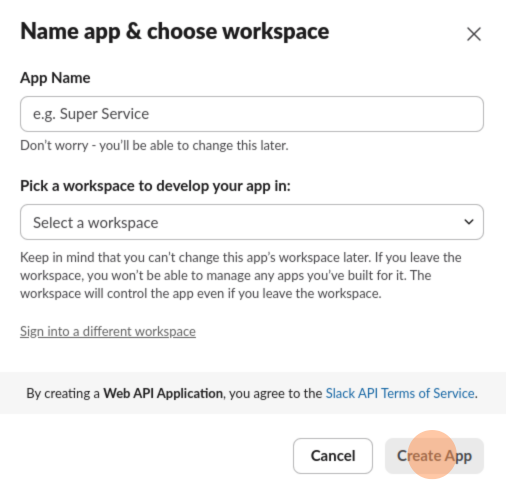
📝 Step 5: Fill App Details
Write the App Name and select your Workspace, then click on Create App
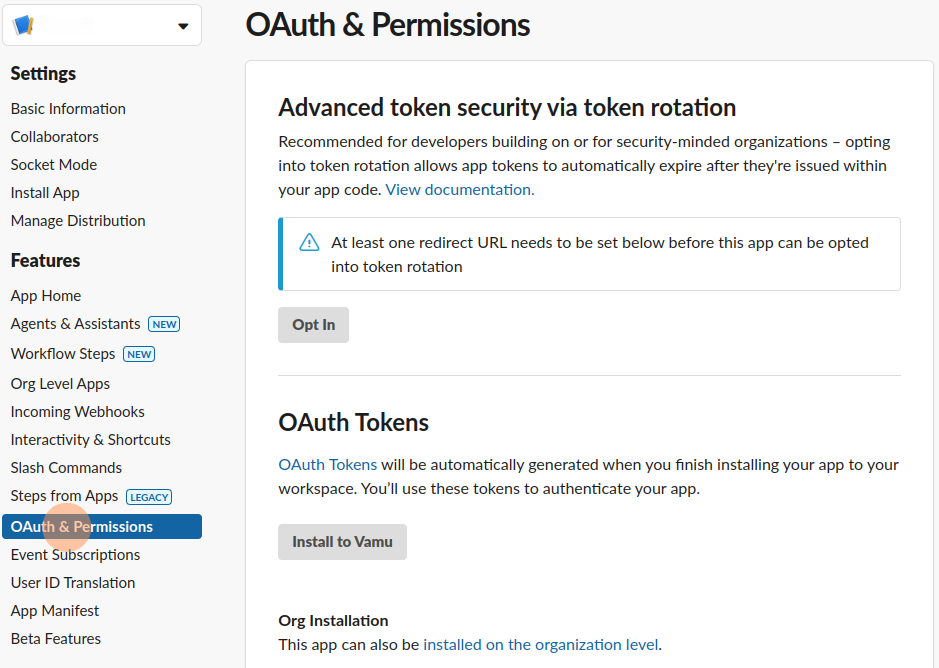
🔐 Step 6: OAuth & Permissions
Navigate to the OAuth & Permissions section
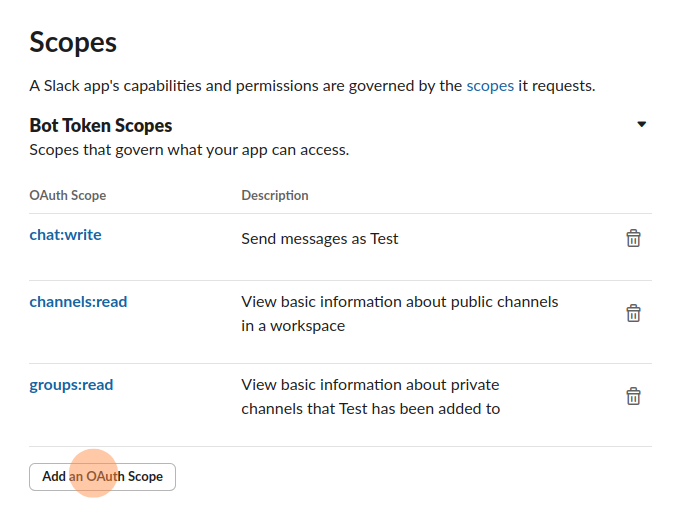
➕ Step 6.1: Add Scopes
Add the necessary Scope
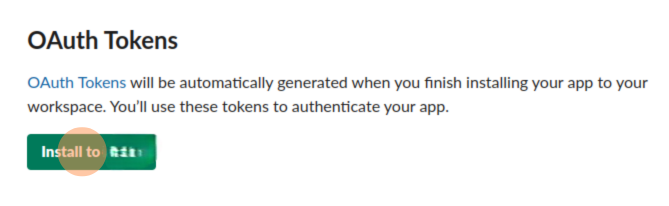
🔗 Step 6.2: Install App
Install the app in your workspace
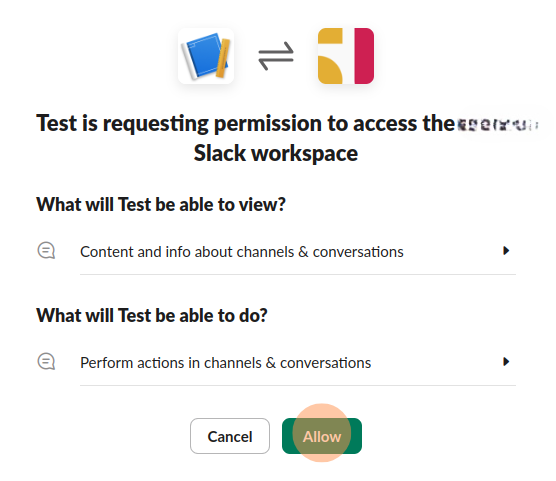
✅ Step 6.3: Approve Permissions
You’ll be redirected to allow the app. Click Allow
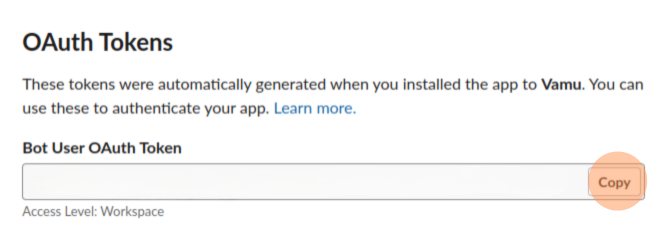
📋 Step 6.4: Copy OAuth Token
Copy your OAuth Token and save it — you'll need it to enable Slack notifications in Vamu
💬 Step 7: Set Up Channel
Go to your workspace and create a new channel for Vamu notifications.
👥 Step 7.1: Open Channel Members
Click on the Members tab

🆔 Step 7.2: Copy Channel ID
Under About, copy the Channel ID and save it

➕ Step 7.3: Add App to Channel
Navigate to the Integrations tab and click Add an app

✅ Step 7.4: Select the App
Find the app you recently created and click Add
🚀 Step 8: Final Setup in Vamu
Return to the Vamu platform and proceed with the automation setup. Add the copied OAuth Token and Channel ID to establish the Slack connection.
✅ Done!
Your Slack integration is now complete 🎉
You’ll now start receiving messages directly into the selected channel.