MongoDB Integration
🔧 Step-by-Step MongoDb Atlas Setup
Follow these steps to securely connect your MongoDB Atlas organization to Vamu.
🔐 Log in
- Log in to your MongoDB Atlas account and choose the organization you'd like to link with Vamu.
🧱 Create API Key
- From the top-right corner of the Atlas dashboard, open the Access menu and choose Organization Access.

- Click Applications on left-side menu, then select API Keys.

- Click Add New, then select API Key.

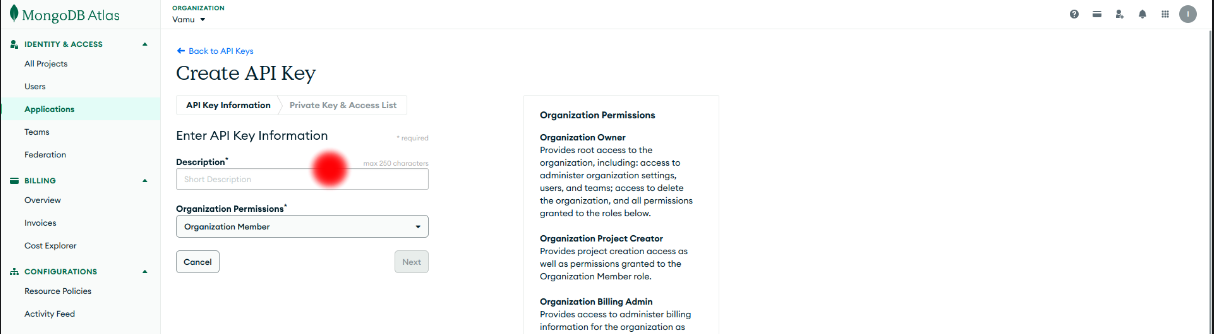
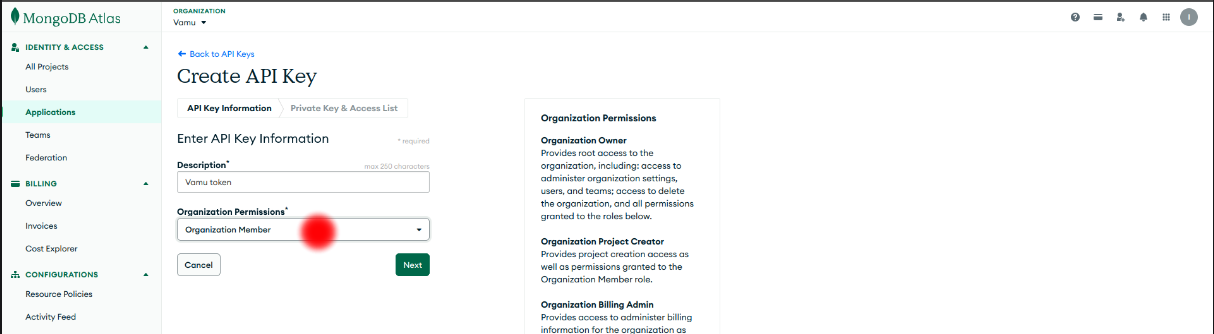
- Give your API key a short, descriptive label for easy future reference.
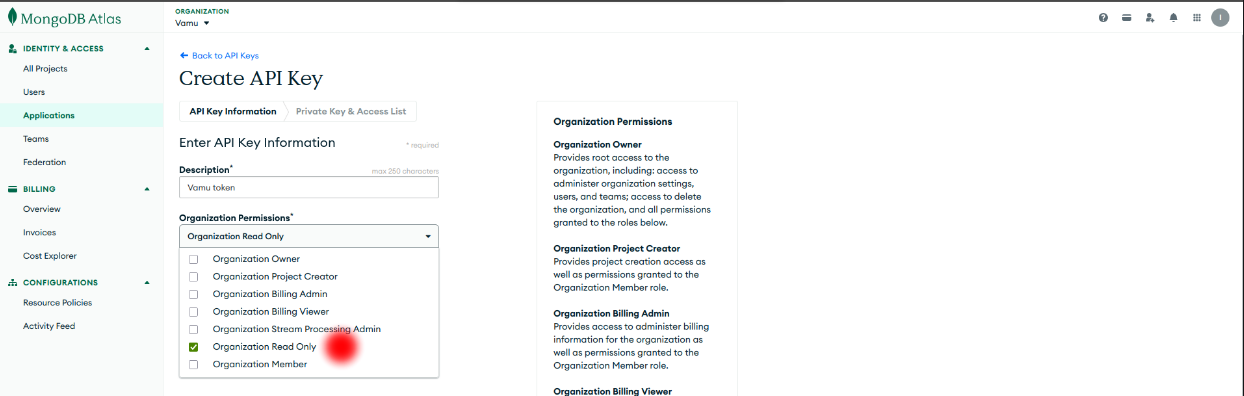
- Set the permission level to:
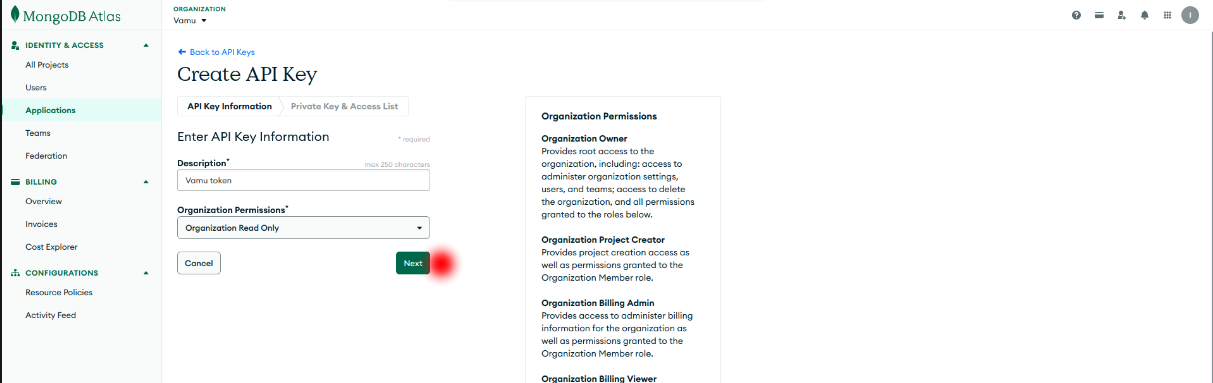
Organization Read Only.
- Set the permission level to:
📝 Add Access List Entry
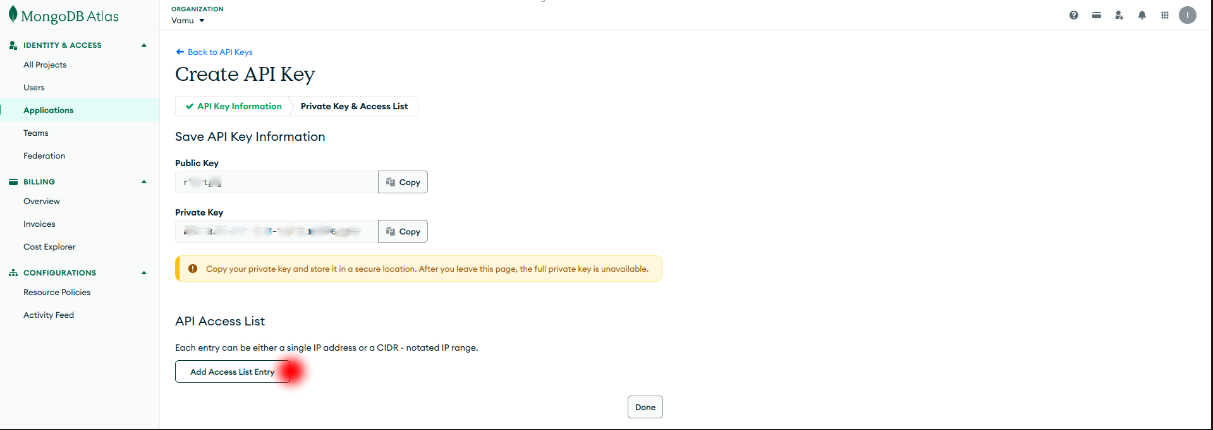
- On the next screen, allow Vamu to connect:
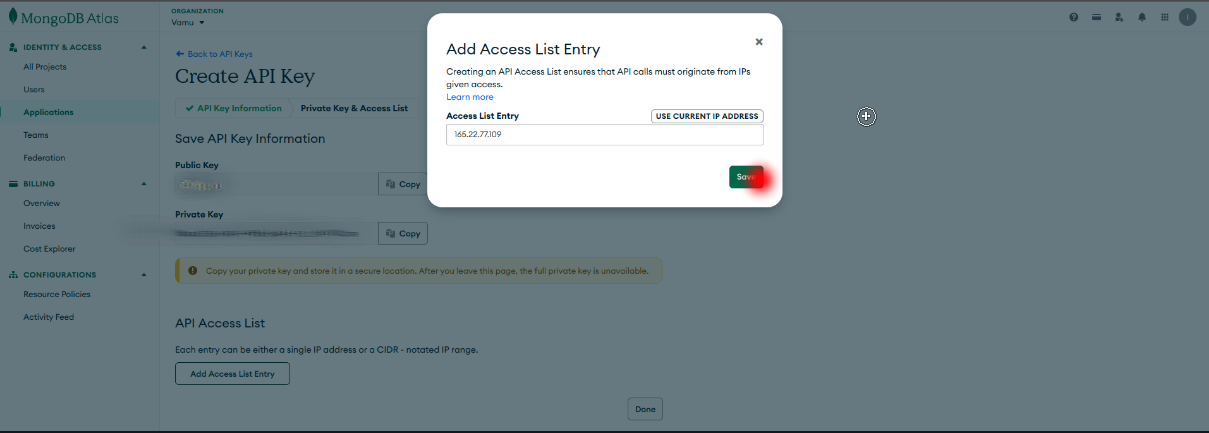
- Click Add Access List Entry
- Enter the IP address:
165.22.77.109
💾 Save Keys
- Once the key is generated, copy both:
Public KeyPrivate Key
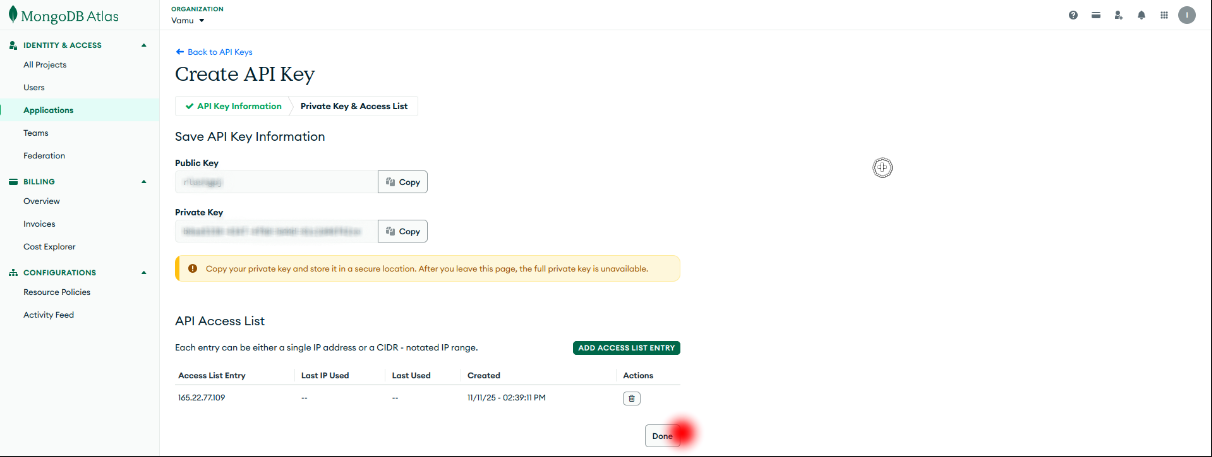
- Paste the copied Public Key and Private Key into their corresponding fields.
✅ You’re all set! Vamu will now connect securely to your MongoDB Atlas organization.